Hi Friends,
If you use dedicated client in your environment & try to invoke assignment manager through scripting, then you might face errors like:
"No server connect string for Siebel Component SRBroker in Siebel Enterprise SBA_ES, Siebel Server DEV8~ 1-3HU6QN~Campaign Contact"
For this to work correctly, you need to modify your Dedicated client CFG & include following in the InfraObjMgr Section:
[InfraObjMgr]
RequestServerName = dev8
TO
[InfraObjMgr]
RequestServerName = sba_as
Above changes mean that you have to use the 'Logical Siebel Server' Name for RequestServerName instead of Physical Server Name & this Server should have 'Assignment Manager Component' running on it.
After you make these changes in the CFG & restart the client, you will not face this issue again.
Keywords:
siebel crm,siebel, siebel systems,siebel dedicated client,dedicated web client,CFG,Assignment Manager, siebel admin,siebel config,siebel assignment manager
Tuesday, April 28, 2009


Saturday, April 25, 2009
Buttons in Siebel UI are having Transparent Look & Feel
Hi Friends,
Well a very annonyning problem i came across & it took me around 4 months & 4 Service Requests before Siebel accepted it as bug.
Scenario:
If you have Siebel 8 Implementation in your environment over cross platforms, then you will face this issue of Transparent Buttons across the Application.
For e.g. Application Servers are on Windows Platform
Webservers [Siebel Web Server Extention Implementation] are on UNIX or Linux Platform.

Issue:
main.css has button related file extension reference in uppercase; i.e. "GIF"
Check the screenshot:

Now, when we are having our Webservers on UNIX or Linux Platform, this upper case extensions become a big bottleneck as file systems are case sensitive.
All the image file provided by Siebel are having file extension in lower case: ie "gif" or "jpg".
Now due to this uppercase extension, the Siebel UI was failing to render the button images at all causing the transparent look & feel.
Resolution:
There are two ways to correct this:
1) Edit the Vanilla main.css under [SWSE_ROOT\public\enu\files] for all such upper case references to lower case: i.e. "GIF" to "gif"
2)Create a copy of button images with uppercase extensions using below commands:
[SWSE_ROOT\public\enu\images\]
-bash-3.00$ cp bkgrnd_minibtn.gif bkgrnd_minibtn.GIF
-bash-3.00$ cp bkgrnd_minibtn_hover.gif bkgrnd_minibtn_hover.GIF
This issue has been validated from Siebel 8.0 to 8.0.0.6. A Fix Request has been raised, so lets see when this annoying issue of transparent buttons is officially fixed ;-)
Till then happy CRM hunting. :-)
Keywords:
siebel crm, swse, siebel swse, siebel, siebel systems, webservers, web servers, linux, unix, Sun One, Oracle HTTP Server, OHS 2.0, Apache 2.0, IIS, Siebel Web Server Extensions
Well a very annonyning problem i came across & it took me around 4 months & 4 Service Requests before Siebel accepted it as bug.
Scenario:
If you have Siebel 8 Implementation in your environment over cross platforms, then you will face this issue of Transparent Buttons across the Application.
For e.g. Application Servers are on Windows Platform
Webservers [Siebel Web Server Extention Implementation] are on UNIX or Linux Platform.

Issue:
main.css has button related file extension reference in uppercase; i.e. "GIF"
Check the screenshot:

Now, when we are having our Webservers on UNIX or Linux Platform, this upper case extensions become a big bottleneck as file systems are case sensitive.
All the image file provided by Siebel are having file extension in lower case: ie "gif" or "jpg".
Now due to this uppercase extension, the Siebel UI was failing to render the button images at all causing the transparent look & feel.
Resolution:
There are two ways to correct this:
1) Edit the Vanilla main.css under [SWSE_ROOT\public\enu\files] for all such upper case references to lower case: i.e. "GIF" to "gif"
2)Create a copy of button images with uppercase extensions using below commands:
[SWSE_ROOT\public\enu\images\]
-bash-3.00$ cp bkgrnd_minibtn.gif bkgrnd_minibtn.GIF
-bash-3.00$ cp bkgrnd_minibtn_hover.gif bkgrnd_minibtn_hover.GIF
This issue has been validated from Siebel 8.0 to 8.0.0.6. A Fix Request has been raised, so lets see when this annoying issue of transparent buttons is officially fixed ;-)
Till then happy CRM hunting. :-)
Keywords:
siebel crm, swse, siebel swse, siebel, siebel systems, webservers, web servers, linux, unix, Sun One, Oracle HTTP Server, OHS 2.0, Apache 2.0, IIS, Siebel Web Server Extensions
Tuesday, June 10, 2008
Enabling Dynamic Pricing/Advanced Pricing Capabilities in Siebel 8.x/7.8.x
Hi All,
This article would discuss about enabling Dynamic Pricing/Advanced Pricing Capabilities in Siebel.
By default, Siebel uses Basic Pricing as its base pricing procedure followed.
In order to enable & use advanced pricing procedure, quite a few configuration changes are required as listed below:
1) First & foremost requirement is, you need to have Siebel Dynamic Pricer License.
2) You need to activate all the workflows related to your Pricing Configuration Requirement.
A complete technical reference is available in the Siebel Pricing Administration Guide
Siebel 8: http://download.oracle.com/docs/cd/B40099_02/books/PriceAdm/PriceAdmTOC.html
Siebel 7.8:
http://download.oracle.com/docs/cd/B31104_02/books/PriceAdm/PriceAdmTOC.html
3) Apart from this, you may need to activate other workflows available in the Order Management Infrastructure Guide
Siebel 8:
http://download.oracle.com/docs/cd/B40099_02/books/OrderMgtInfra/OrderMgtInfraTOC.html
Siebel 7.8:
http://download.oracle.com/docs/cd/B31104_02/books/OrderMgtInfra/OrderMgtInfraTOC.html
4) Need to modify various signals which point to Basic Pricing Procedure, to enable Dynamic Pricing.
For this, follow the detailed guidelines of Tech Note 643 or Document Id: 473914.1 on Oracle Metalink 3.
When you complete the above 4 steps, your environment would be successfully configured for Dynamic Pricing or Advanced Pricing Capabilities.
Keywords: comparison pricing,competitive pricing,dynamic price,dynamic pricing,market pricing,price waterfall,pricer,pricing management,pricing strategy,product pricing,siebel crm,value pricing
This article would discuss about enabling Dynamic Pricing/Advanced Pricing Capabilities in Siebel.
By default, Siebel uses Basic Pricing as its base pricing procedure followed.
In order to enable & use advanced pricing procedure, quite a few configuration changes are required as listed below:
1) First & foremost requirement is, you need to have Siebel Dynamic Pricer License.
2) You need to activate all the workflows related to your Pricing Configuration Requirement.
A complete technical reference is available in the Siebel Pricing Administration Guide
Siebel 8: http://download.oracle.com/docs/cd/B40099_02/books/PriceAdm/PriceAdmTOC.html
Siebel 7.8:
http://download.oracle.com/docs/cd/B31104_02/books/PriceAdm/PriceAdmTOC.html
3) Apart from this, you may need to activate other workflows available in the Order Management Infrastructure Guide
Siebel 8:
http://download.oracle.com/docs/cd/B40099_02/books/OrderMgtInfra/OrderMgtInfraTOC.html
Siebel 7.8:
http://download.oracle.com/docs/cd/B31104_02/books/OrderMgtInfra/OrderMgtInfraTOC.html
4) Need to modify various signals which point to Basic Pricing Procedure, to enable Dynamic Pricing.
For this, follow the detailed guidelines of Tech Note 643 or Document Id: 473914.1 on Oracle Metalink 3.
When you complete the above 4 steps, your environment would be successfully configured for Dynamic Pricing or Advanced Pricing Capabilities.
UPDATE
For Siebel 8.1.1.x & above version, you can enable dynamic pricing at a single click...read more!Keywords: comparison pricing,competitive pricing,dynamic price,dynamic pricing,market pricing,price waterfall,pricer,pricing management,pricing strategy,product pricing,siebel crm,value pricing
Friday, May 09, 2008
Siebel 8.0 Simplified Installation Tasks/Guide for Windows
Hi Friends,
One of the most frequently asked question regarding Siebel is an shortcut summarized document for its installation, to test it out faster.
Well, on other environments, it may not be easy to write a shortcut document, but for Windows Oracle has definitely written one.
You can access this simplified installation document on Oracle Siebel SupportWeb or Metalink 3 by searching for Document ID: 475438.1 or TechNote 688
Enjoy installing Siebel!
One of the most frequently asked question regarding Siebel is an shortcut summarized document for its installation, to test it out faster.
Well, on other environments, it may not be easy to write a shortcut document, but for Windows Oracle has definitely written one.
You can access this simplified installation document on Oracle Siebel SupportWeb or Metalink 3 by searching for Document ID: 475438.1 or TechNote 688
Enjoy installing Siebel!
Wednesday, April 16, 2008
Enabling HighInteractivity for PRM Portal (eChannel) in Siebel v7.8 & Siebel v8.0
Enabling HighInteractivity for Partner Portal (PRM Portal, eChannel) is a simple job!
HighInteractivity provides the same functionality as you find in your Sales or Marketing Application with ActiveX Loaded & minimum page refreshes.
By default, Partner Portal runs in StandardInteractivity Mode.
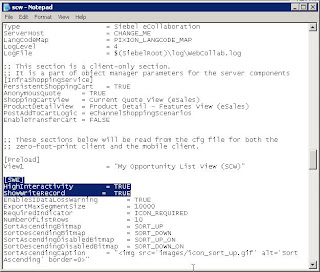
For Siebel CRM v7.8, following are the steps:
1)Browse to your Siebel_Server_Root\bin\enu\
2)Open the scw.cfg
3)Find the section [SWE]
4)Add the following two lines:
HighInteractivity provides the same functionality as you find in your Sales or Marketing Application with ActiveX Loaded & minimum page refreshes.
By default, Partner Portal runs in StandardInteractivity Mode.
For Siebel CRM v7.8, following are the steps:
1)Browse to your Siebel_Server_Root\bin\enu\
2)Open the scw.cfg
3)Find the section [SWE]
4)Add the following two lines:
HighInteractivity = TRUE
ShowWriteRecord = TRUE
ShowWriteRecord = TRUE

5) Save the file & restart the server to have HighInteractivity on your PRM Portal
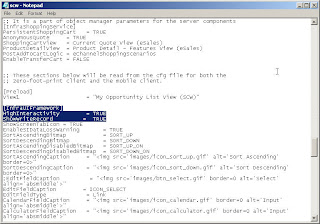
Similarly for Siebel CRM v8.0, following are the steps:
1)Browse to your Siebel_Server_Root\bin\enu\
2)Open the scw.cfg
3)Find the section [InfraUIFramework]
4)Add the following two lines:
Keywords: channel portal,crm,crm portal,customer relationship management,e channel,echannel,high interactivity,on demand,partner portal,prm portal,relationship management,siebel,siebel high interactivity,siebel high interactivity framework,siebel high interactivity framework for ie,siebel portal,siebel systems
Similarly for Siebel CRM v8.0, following are the steps:
1)Browse to your Siebel_Server_Root\bin\enu\
2)Open the scw.cfg
3)Find the section [InfraUIFramework]
4)Add the following two lines:
HighInteractivity = TRUE
ShowWriteRecord = TRUE
ShowWriteRecord = TRUE

5) Save the file & restart the server to have HighInteractivity on your PRM Portal
Keywords: channel portal,crm,crm portal,customer relationship management,e channel,echannel,high interactivity,on demand,partner portal,prm portal,relationship management,siebel,siebel high interactivity,siebel high interactivity framework,siebel high interactivity framework for ie,siebel portal,siebel systems
Subscribe to:
Posts (Atom)